
i'll paste the bot code if you tell me to.
📄
pasted-code-1792946889082.txt
txt
156 lines
▶
Build Tournament X — Full Discord Tournament Management Platform

Act as an expert full-stack developer specialising in Discord bots, Discord.js, JavaScript, databases, and modern web dashboards.

Build a complete, functional Discord tournament bot called Tournament X with a professional web dashboard.

Platform and technology

Use:

* Node.js and JavaScript.
* Discord.js v14 or a currently supported version.
* Slash commands using Discord’s application command system.
* SQLite for persistent storage, or PostgreSQL if the hosting environment provides it.
* A modern responsive web dashboard using a suitable web framework.
* Environment variables for secrets and bot tokens.

The project must be suitable for development on Replit and manageable from a mobile browser.

Do not use Bot Designer for Discord.

Core tournament features

Support:

* Solo tournaments.
* Team tournaments: 2v2, 3v3, and 5v5.
* Configurable tournament sizes.
* Single-elimination brackets.
* Automatic match pairing and round progression.
* Byes for bracket sizes that aren’t powers of two.
* Player and team registration.
* Team creation, invitations, captains, and rosters.
* Match reporting, score submission, confirmation, and disputes.
* Automatic advancement of verified winners.
* Tournament cancellation and safe resets.
* Champion announcements.

Discord slash commands

Implement commands such as:

/tournament create — Create a tournament.
/tournament info — View tournament details.
/tournament list — List available tournaments.
/tournament join — Register for a solo tournament.
/tournament leave — Leave a tournament.
/tournament team create — Create a team.
/tournament team invite — Invite a player.
/tournament team join — Join a team invitation.
/tournament team roster — View a team’s roster.
/tournament register — Register a complete team.
/tournament bracket — Display the bracket.
/tournament matches — View matches.
/tournament result — Submit a result.
/tournament confirm — Confirm a result.
/tournament dispute — Dispute a result.
/tournament leaderboard — View the leaderboard.
/tournament profile — View player statistics.
/tournament close — Close registration.
/tournament start — Start the tournament.
/tournament cancel — Cancel the tournament.
/tournament champion — View the champion.

Use Discord subcommands where appropriate. Validate permissions and inputs on every relevant command.

Match and bracket system

Generate actual brackets from registered entrants or teams.

Requirements:

* Generate pairings automatically.
* Handle byes correctly.
* Store rounds and matches in the database.
* Prevent a player or team from appearing twice in the same tournament.
* Advance winners only after results are verified.
* Prevent duplicate result processing.
* Support disputes and administrator resolution.
* Automatically determine the champion when the final is completed.
* Display bracket progress clearly.

Database

Use a proper relational database schema for:

* Users.
* Tournaments.
* Tournament registrations.
* Teams.
* Team members.
* Matches.
* Match results.
* Disputes.
* Player statistics.
* Tournament history.

Persist all important data so tournaments survive bot restarts.

Use transactions where needed to prevent inconsistent brackets and duplicate match results.

Web dashboard

Build a responsive, professional dashboard with a dark esports-inspired design.

Include:

* Overview and tournament statistics.
* Create and manage tournaments.
* Registration and team management.
* Bracket visualisation.
* Match result management.
* Player profiles and leaderboards.
* Tournament history.
* Bot configuration.

Use a modern interface with dark backgrounds, clean typography, subtle neon accents, and responsive layouts suitable for phones.

Implement secure authentication. If using Discord OAuth2, verify user identity and check that the user has the appropriate permissions before allowing server or tournament management.

Security and reliability

* Never hardcode Discord tokens, OAuth secrets, or database credentials.
* Use environment variables and a .env.example file.
* Validate every command and API request.
* Check tournament-organiser and administrator permissions.
* Prevent unauthorised result changes.
* Handle Discord API errors and rate limits.
* Add useful logging and error messages.
* Protect against duplicate registrations and concurrent result submissions.
* Never trust a reported match result until it has been confirmed.

Deliverables

Build the actual working project, not just a tutorial or a mock-up.

Provide:

1. Complete source code.
2. A sensible project structure.
3. Database schema and migrations.
4. All Discord slash-command handlers.
5. Bracket generation and advancement logic.
6. Web dashboard and backend API.
7. Environment variable documentation.
8. Setup instructions for Replit.
9. Instructions for creating a Discord application and bot.
10. Instructions for registering slash commands and inviting the bot.
11. Testing instructions for solo and team tournaments.
12. Deployment instructions and a README.

Do not claim that features work unless they have actually been implemented and tested. Avoid placeholder buttons and fake database operations.

Start by creating the working project structure and implementing the database, Discord bot, and core tournament lifecycle. Then implement the dashboard and advanced features.

The final result should be a real, usable tournament platform called Tournament X.
Create the Node.js/Discord.js project, SQLite schema, and tournament lifecycle services.
Add slash commands for tournaments, teams, matches, results, and player stats.
Add an OAuth-protected dashboard, environment template, and setup guide.
Created Tournament X as a Discord.js v14 bot with SQLite persistence and a responsive, Discord OAuth-protected dashboard. It includes tournament and team registration, single-elimination brackets with byes, verified match reports, disputes and organizer resolution, champion announcements, player stats, and a leaderboard.
Setup and Replit instructions are in README.md. Add the required Discord credentials and a random SESSION_SECRET of at least 32 characters to your environment settings before starting it. No existing bot code was needed; I haven’t run the project or its testing checklist here.
how to
To set up Tournament X:
In the Discord Developer Portal, create an application and bot. Copy its bot token, application ID, and OAuth2 client secret.
Add these environment variables in your project’s settings/secrets:
DISCORD_TOKENDISCORD_CLIENT_IDDISCORD_CLIENT_SECRETSESSION_SECRET— a long, random secretDISCORD_REDIRECT_URI— your hosted project URL followed by/auth/callbackGUILD_ID— your test server’s ID, so slash commands register there quickly
In the application’s OAuth2 settings, add that exact redirect URI. Invite the bot to your server with the
botandapplications.commandsscopes.Deploy the Discord bot project on Kodari. Its public URL will be
https://<name>.kodaribots.com; use that URL inDISCORD_REDIRECT_URI.Sign in to the dashboard with a Discord account that can manage the server, then use
/tournamentcommands in Discord.
The setup details and command guide are also in README.md.
where can i paste the token and stuff
Open your project’s Settings → Environment Variables/Secrets and add these as separate key–value entries. Paste the bot token as the value for DISCORD_TOKEN—not in the chat or source code.
DISCORD_TOKEN— bot tokenDISCORD_CLIENT_ID— application IDDISCORD_CLIENT_SECRET— OAuth2 client secretDISCORD_REDIRECT_URI—https://your-bot-name.kodaribots.com/auth/callbackSESSION_SECRET— a long, random secretGUILD_ID— optional; your test server’s ID for faster slash-command setup
Add the same redirect URL under your Discord application’s OAuth2 → General → Redirects. If you’re setting it up in Replit instead, use Tools → Secrets.
WHERE DO I PASTE THEM
In this Kodari project, click the gear icon (Settings) and open Environment Variables or Secrets. Add each name and value there—for example, name DISCORD_TOKEN, value your bot token. Don’t paste the token into chat or your source files.
there's no gear icon
You’re right—I gave you the wrong directions. There may not be a gear icon in your editor. Don’t paste the token into chat or a source file.
If you’re on a phone, try ⋮ in the top-right → Settings. If you don’t see Environment Variables or Secrets there, tell me whether you’re on desktop or phone and what menu options you see, and I’ll guide you from that screen.
I SEE THE GEAR WHEN I CLICK THE 3 DOTS BUT THERES NO OPTION TO PASTE ANYTHING
The gear menu isn’t where you enter them—sorry. In the project’s file list, create a new file named .env in the project root, beside package.json, and paste your settings there:
DISCORD_TOKEN=your_bot_token
DISCORD_CLIENT_ID=your_application_id
DISCORD_CLIENT_SECRET=your_oauth_client_secret
DISCORD_REDIRECT_URI=https://your-bot-name.kodaribots.com/auth/callback
SESSION_SECRET=paste_a_long_random_secret_here
GUILD_ID=your_test_server_id
Replace the example values with yours, then save and restart the bot. Keep .env private—don’t paste it into chat or share a screenshot of it.
THERES NO OPTION. WHY. GIVE ME A TURTORIAL
You’re right—the gear menu is not where you paste secrets. I sent you in the wrong direction earlier.
In the project editor:
Close Settings and open the project file list—the place where you can see
package.jsonand.env.example.In that file list, choose New File (usually a + button or the file-list menu).
Name the new file
.env—exactly that, with no extra extension—and put it besidepackage.json.Paste this into
.env, replacing the example values with yours:
DISCORD_TOKEN=your_bot_token
DISCORD_CLIENT_ID=your_application_id
DISCORD_CLIENT_SECRET=your_oauth_client_secret
DISCORD_REDIRECT_URI=https://your-bot-name.kodaribots.com/auth/callback
SESSION_SECRET=make-this-a-long-random-secret
GUILD_ID=your_test_server_id
Save the file and start the bot. Do not put real credentials in
.env.exampleor paste them here.
If the file list has no New File option or + button, tell me what buttons/options you see there—or send a screenshot with any secrets hidden. I don’t want to guess at a control that isn’t on your screen.
i see no fucking button
Sorry—I sent you in circles and guessed at buttons that aren’t there. The gear menu isn’t the place to paste credentials, and I can’t see your editor to give reliable click-by-click directions.
Please send a screenshot of the screen you’re on, with any tokens or secrets hidden. I’ll guide you from the controls that are actually visible. Don’t paste the credentials here.
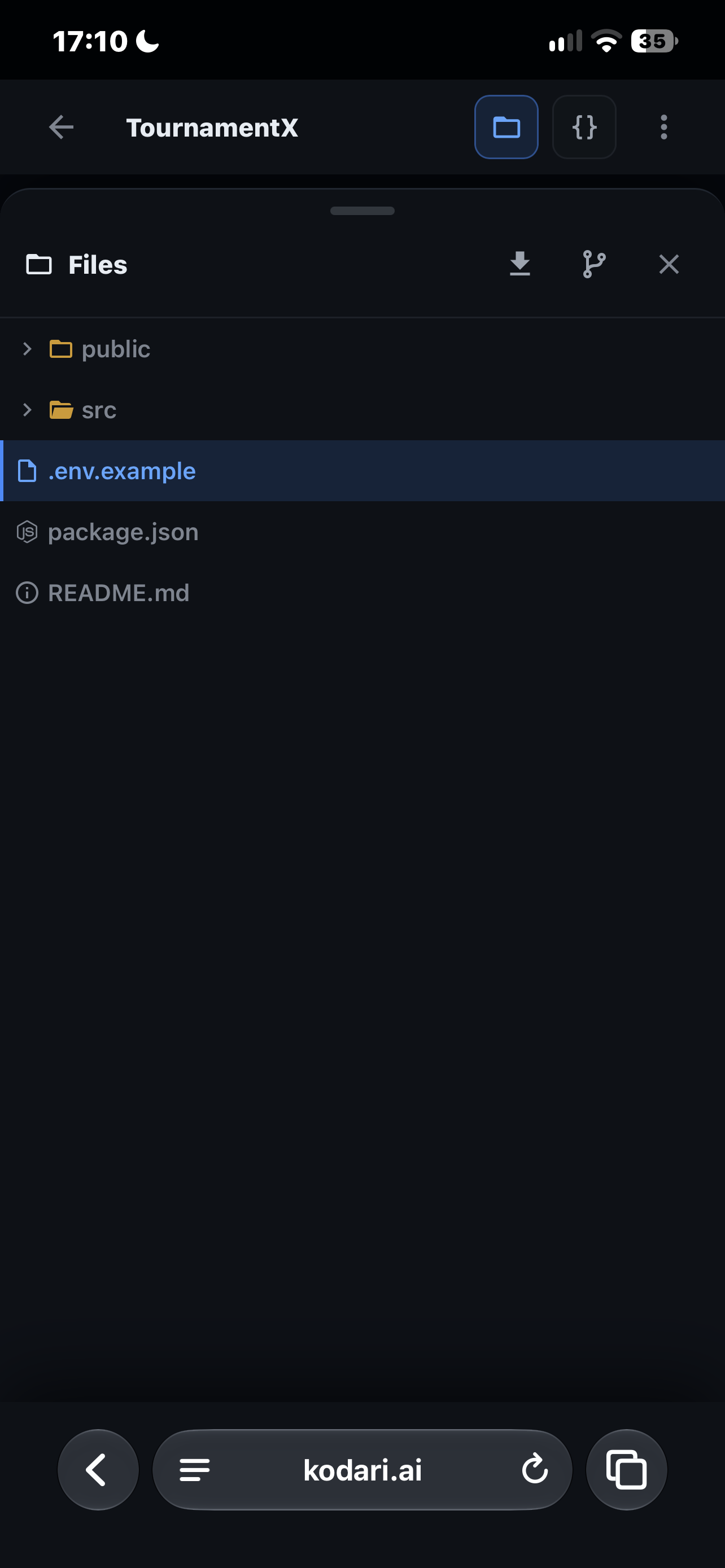
You weren’t missing a button—the file panel in your screenshot has no New File option. I created a .env file for you in the project root.
Tap X at the top-right of the Files panel to close it.
Open
.envfrom the file list. It should be besidepackage.json.Fill in the values after each
=and save. Don’t add quotes. ReplaceYOUR-BOT-NAMEwith your bot’s Kodari name.Leave
.env.examplealone. The bot reads.env.
Keep your token private—don’t paste it in chat or share a screenshot showing it.
IT DOSENT FUCKING LET ME PASTE
You’re in the Files panel, not the text editor. On your screen:
Tap
.envin the file list. If you don’t see it, close the panel with X and reopen the folder.Tap X to close the Files panel and view the file contents.
Tap inside the file, then press and hold where you want the cursor. Choose Paste from the iPhone pop-up menu.
If the file opens but you don’t get a Paste option, tell me what appears after you tap .env. Don’t send the token here.
IT DOESNT FUCKING POP THE FUCK UP YOU PICE OF SHIT
You’re right—I kept guessing, and that wasted your time. In your screenshot, the Files panel is open; you can’t paste into that list.
Tap the {} button at the top, next to the folder icon, to switch to the code editor. Then open .env and tap inside its text area to place the cursor. If that still doesn’t let you paste, stop there and send a screenshot of what appears—with the token hidden—so I can guide you based on the actual screen.
require('dotenv').config();
const { Client, GatewayIntentBits, REST, Routes } = require('discord.js');
const tournamentCommand = require('./commands');
const { startWeb } = require('./web');

const token = process.env.DISCORD_TOKEN;
const clientId = process.env.DISCORD_CLIENT_ID;
if (!token || !clientId) {
  throw new Error('Set DISCORD_TOKEN and DISCORD_CLIENT_ID in the project environment.');
}

const client = new Client({ intents: [GatewayIntentBits.Guilds] });

client.once('ready', async readyClient => {
  console.log(`Tournament X connected as ${readyClient.user.tag}`);
  const rest = new REST({ version: '10' }).setToken(token);
  const body = [tournamentCommand.data.toJSON()];
  try {
    if (process.env.GUILD_ID) {
      await rest.put(Routes.applicationGuildCommands(clientId, process.env.GUILD_ID), { body });
      console.log(`Registered slash commands in guild ${process.env.GUILD_ID}`);
    } else {
      await rest.put(Routes.applicationCommands(clientId), { body });
      console.log('Registered global slash commands');
    }
  } catch (error) {
    console.error('Slash-command registration failed:', error);
  }
});

client.on('interactionCreate', async interaction => {
  if (!interaction.isChatInputCommand() || interaction.commandName !== 'tournament') return;
  try {
    await tournamentCommand.execute(interaction);
  } catch (error) {
    console.error('Tournament command error:', error);
    const content = error.message || 'Something went wrong while processing that command.';
    if (interaction.replied || interaction.deferred) {
      await interaction.followUp({ content, ephemeral: true }).catch(() => {});
    } else {
      await interaction.reply({ content, ephemeral: true }).catch(() => {});
    }
  }
});

client.on('error', error => console.error('Discord client error:', error));
process.on('unhandledRejection', error => console.error('Unhandled rejection:', error));

startWeb();
client.login(token);